Your whole family's week, on the wall.
Hang the iPad or iPhone you already have in the kitchen. FamilyWeek shows the whole family's calendars on it, what's for dinner tonight and which chores still need doing. Everyone just adds appointments in the calendar on their own phone.
- Free, no subscription
- No account
- iOS 15 or later
- English and Dutch
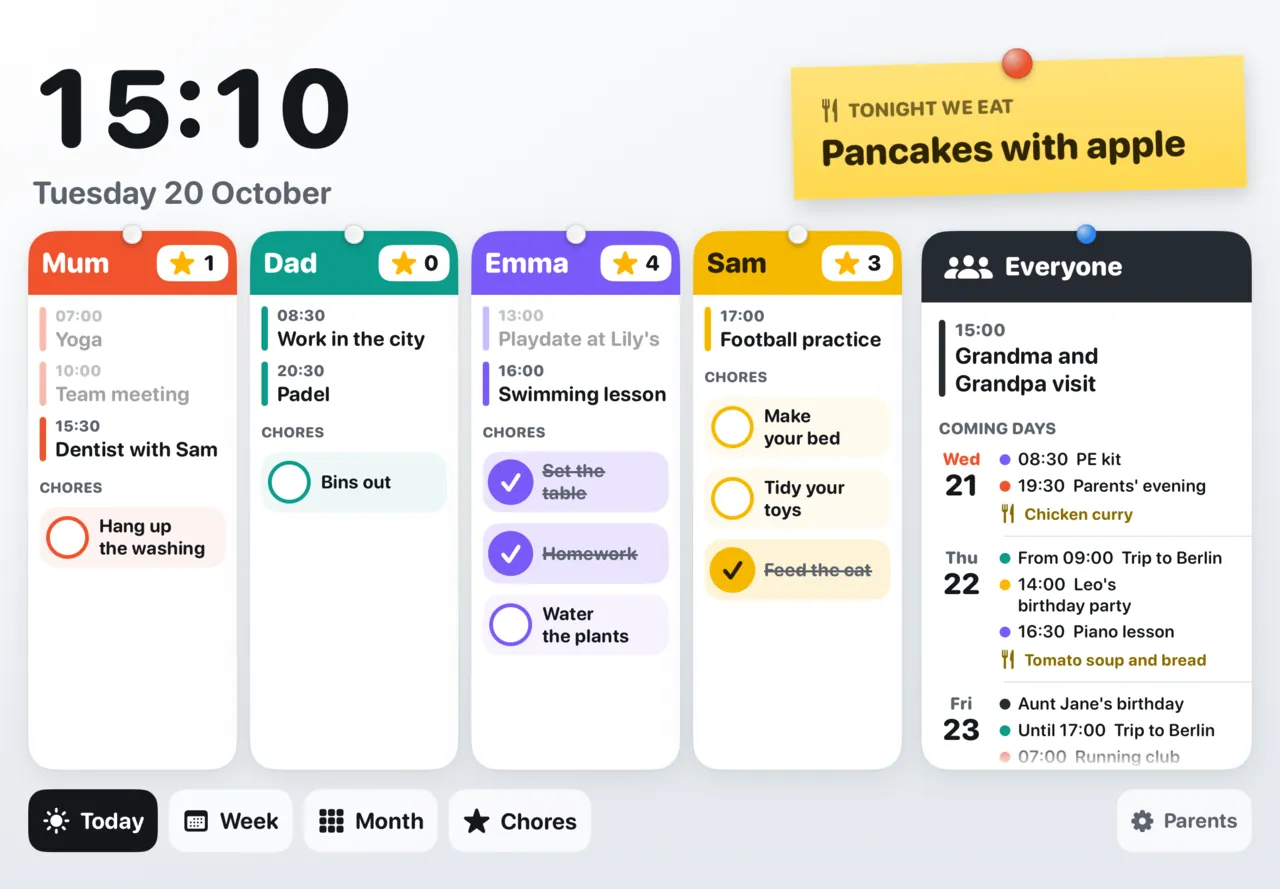
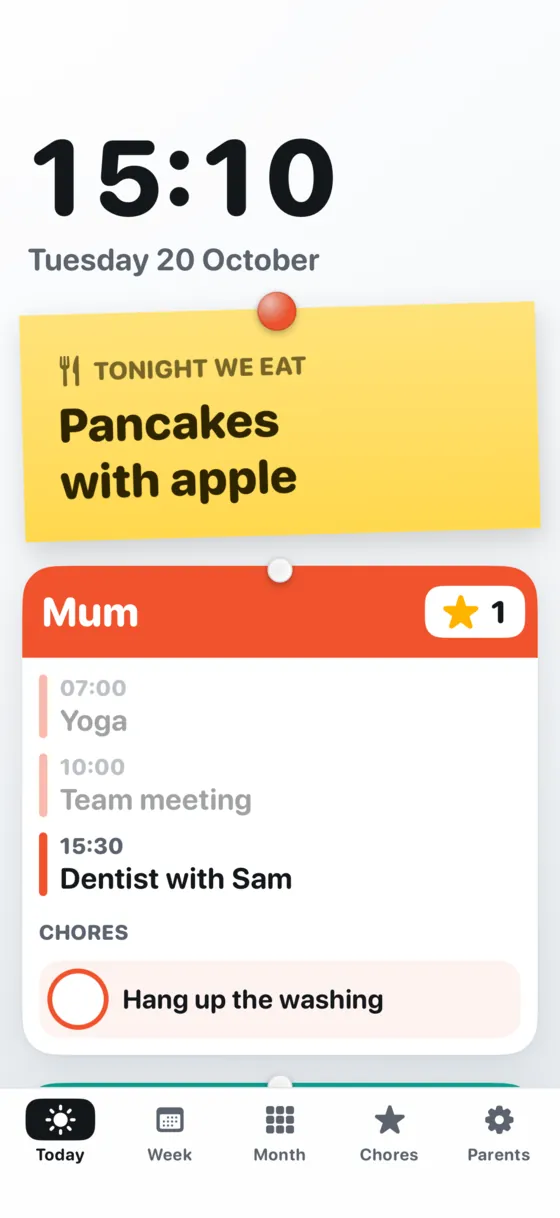
One place everyone looks.
No more asking who has to be where, and when. The board hangs where everyone walks past, so everyone already knows.
Parents
AppointmentsJust add them to your own calendar, on your phone
DinnerTwo weeks ahead in a few taps
SettingsBehind a parent code
Kids4
TodaySee when swimming is, without asking
ChoresTick them off and collect stars
With picturesAlso for kids who can't read yet
Grandparents and sitters
School runSee who has to be where
DinnerKnow what's on the table tonight
No app neededJust a quick look
Everyone
TogetherWhat you do as a family
Coming daysWhat's on tomorrow and after
At nightYour photos and a calm clock
On the wall in three steps.
Setting up takes a few minutes. After that there's nothing to do: whatever your family puts in the calendar shows up on the board by itself.
- 1
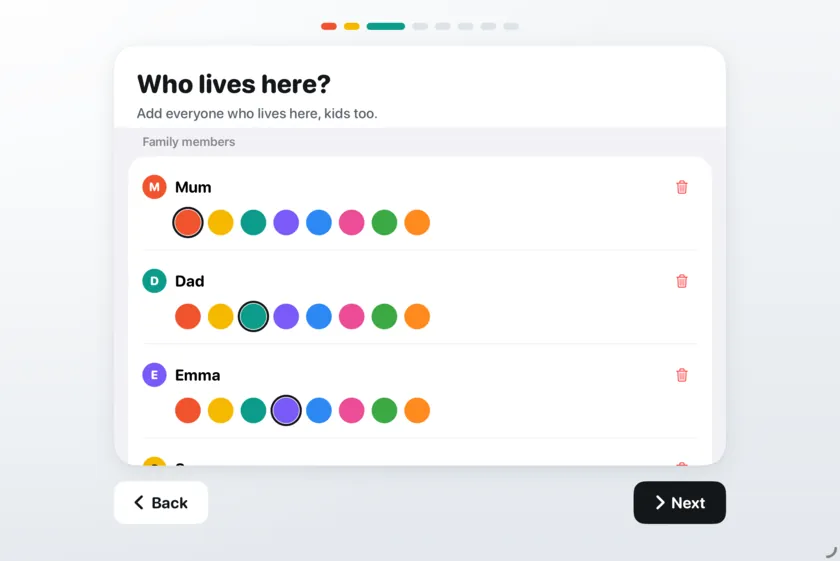
Put FamilyWeek on an iPad or iPhone.
An older one is fine, as long as it runs iOS 15 or later. Tap Start, allow the calendars and type who lives with you. Everyone gets their own colour.
- 2
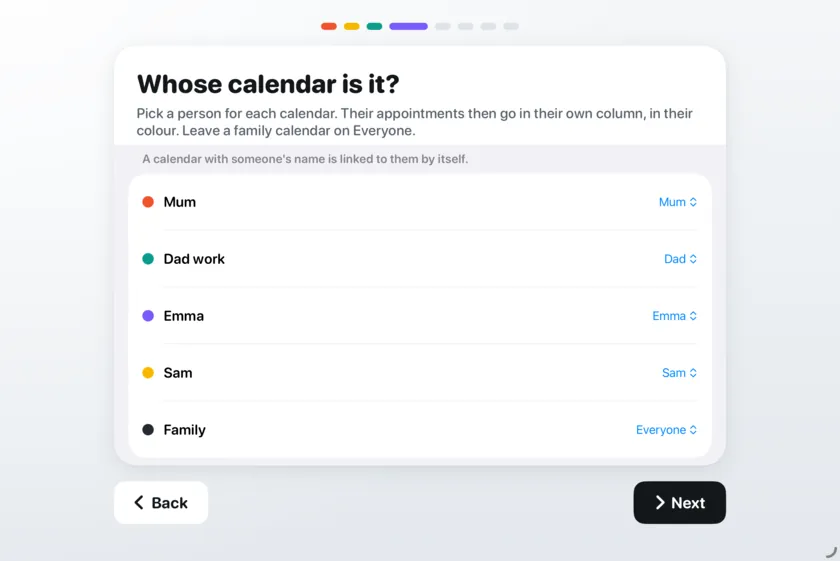
Choose whose calendar is whose.
A calendar named after someone is linked to them by itself. A calendar of the whole family stays with Everyone. Then you pick the first chores and a parent code.
- 3
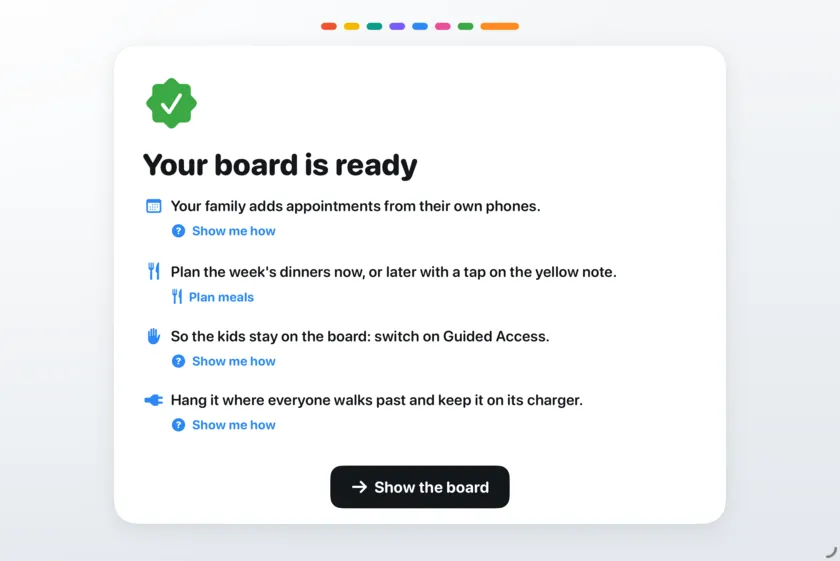
Hang it up, on its charger.
At the kids' eye height, where everyone walks past. While the board shows, the screen stays on. Want a look first? Try it with an example family.
Big enough to read from across the kitchen.
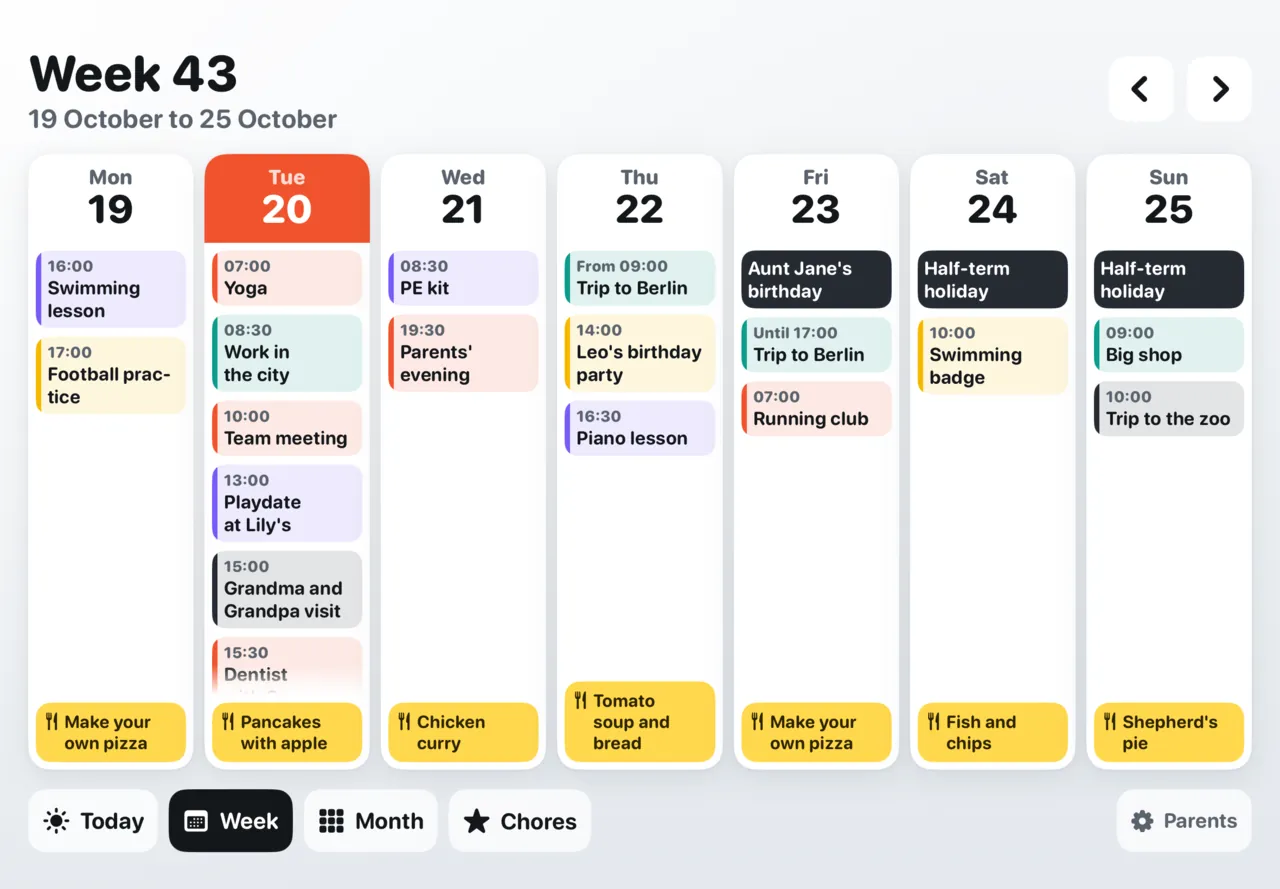
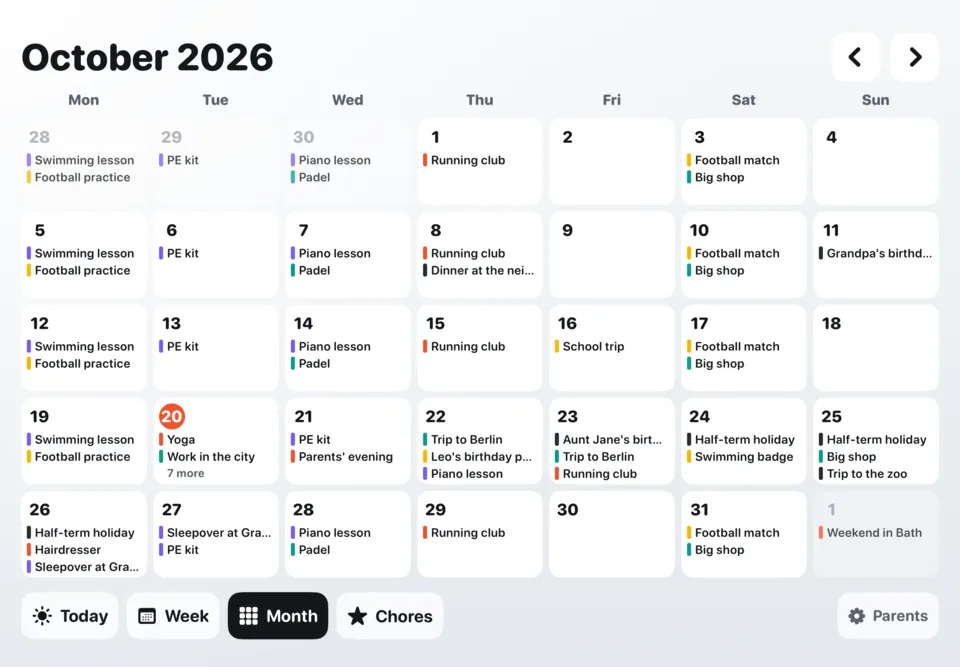
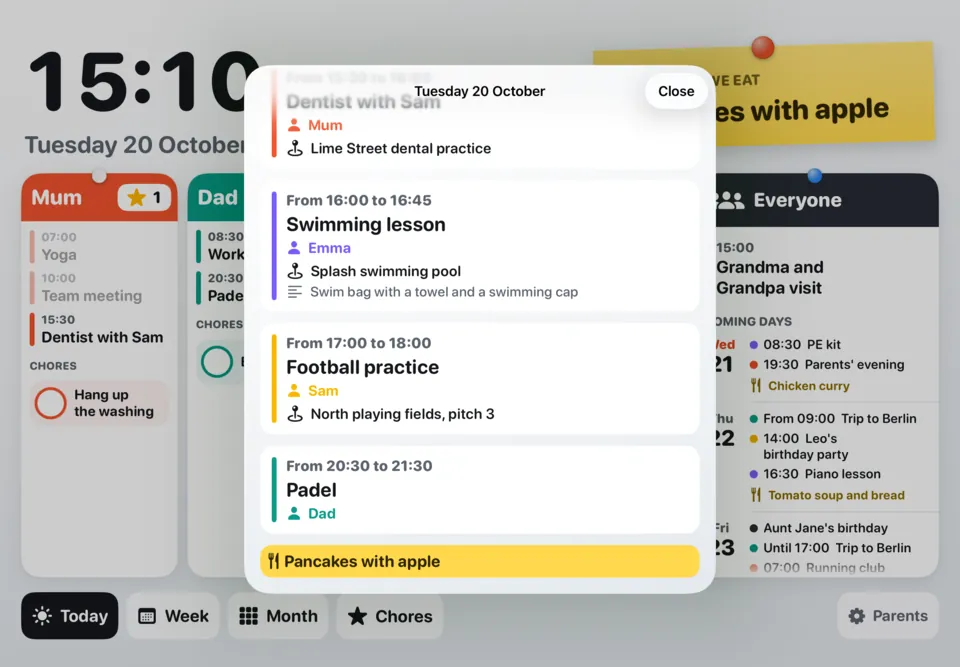
Today, the week, the month and the chores. Tap a day and you see everything on it: what time, whose it is, where and what to bring. After three minutes without a tap, the board goes back to Today by itself.
How everyone adds things.
FamilyWeek has no account of its own. It shows the calendars that are already on the device on the wall: iCloud, Google, Outlook or a school calendar. Pick what suits your family, or combine them.
- 1You already use Family SharingThen you already have a shared calendar called Family. It shows on the board by itself.
- 2Share one calendar with everyoneShare an iCloud calendar from the Calendar app and switch on Allow Editing. Then everyone can add to it.
- 3Everyone keeps their ownEveryone shares their own calendar with the device on the wall. In FamilyWeek you choose whose it is.
- 4Google Calendar or AndroidAdd the Google account on the device on the wall. Family members with Android share their calendar with it.
What's for dinner? It's on the note.
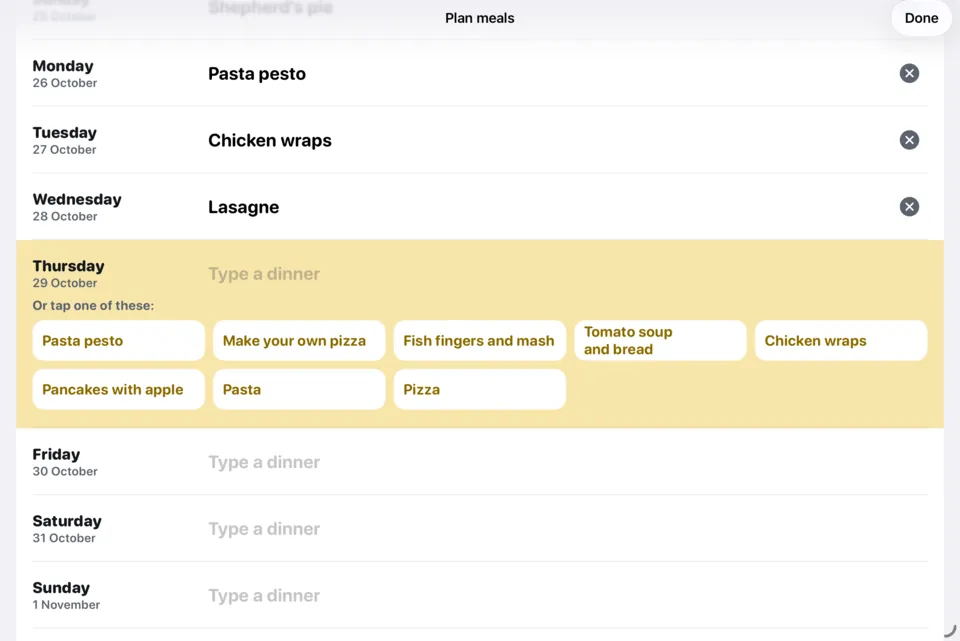
Plan dinner right in FamilyWeek, for today and the thirteen days after. It goes on the yellow note on the board, and into the calendar of everyone who follows along.
- MonPasta pesto
- TonightPancakes with apple
- WedChicken curry
- ThuTomato soup and bread
- FriMake your own pizza
- SatFish and chips
- SunShepherd's pie
- One tap to start. No calendar for dinner yet? Tap the yellow note, then Make a Meals calendar. FamilyWeek makes it in iCloud.
- Type what you eat, or tap something from before. FamilyWeek remembers what you had in the last six weeks.
- Everyone sees it on their own phone. Each dinner is a normal appointment from 6 to 7 pm in the Meals calendar. Share that calendar, and the family can change it from their phones too.
- Only parents change the menu. Everyone may look. To change it, the board asks for the parent code.
- Rather use your phone? A calendar called Meals, Eten, Maaltijden or Avondeten goes on the note by itself.
Chores with stars. Fresh every week.
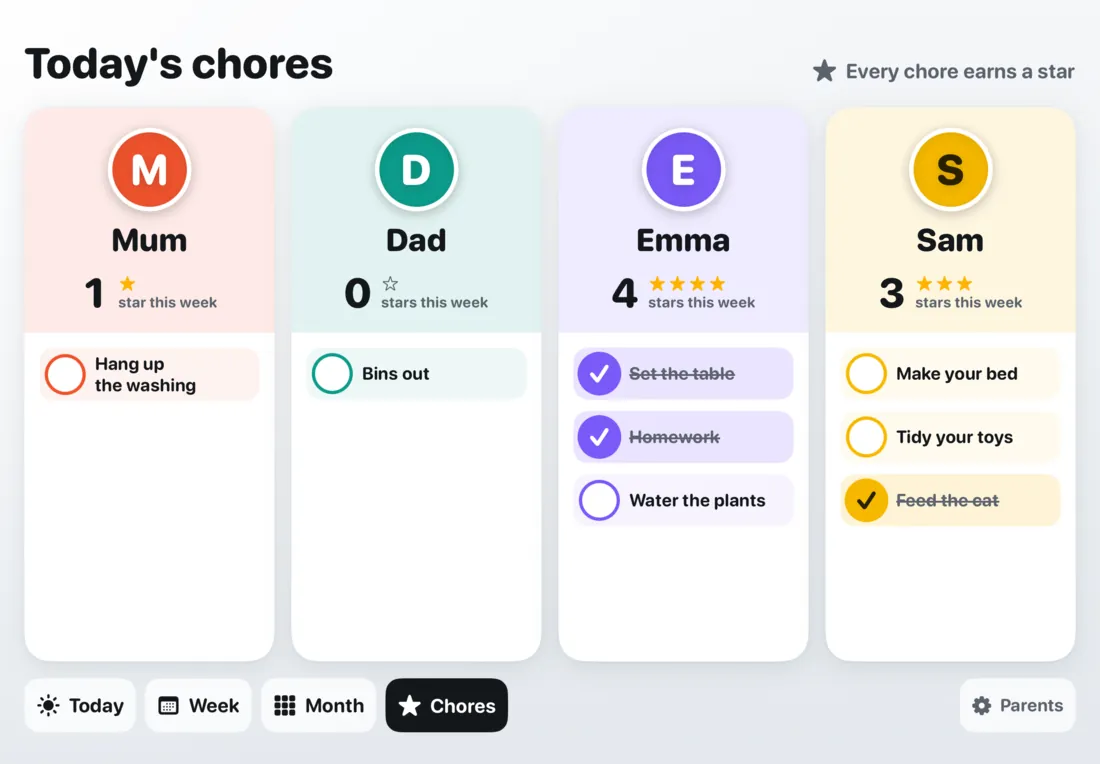
Kids tick off their own chores on the board. Every chore ticked off is a star, and every week the count starts fresh.
- Every day, on set days or just once. Set the table every day, the bins on Tuesday, tidy the room before the sleepover.
- With a picture. Start a chore with an emoji, so kids who can't read yet know which one is theirs.
- For the parents too. Dad puts the bins out, Mum hangs up the washing. Everyone counts.
4
3

At night the board becomes a photo frame.
From the time you choose, FamilyWeek shows your photos from one album, with a soft clock. Rather have no photos? Then you only see a calm clock.
- Need a look? Tap the screen and you see the board for five minutes.
- Tomorrow at a glance. Under the clock sits tomorrow's first appointment.
- Ready every morning. When the morning starts, the board is back.
- Your photos stay yours. FamilyWeek only looks at them, and never changes or sends them.
Kids look. Parents change things.
A parent code
The settings and the menu sit behind a four digit code. Forgot it? Solve a sum and choose a new one straight away.
Guided Access
With the iPad's Guided Access the device stays in FamilyWeek. Nobody can go to other apps or games without your code. The app explains step by step how to switch it on.
Back to Today by itself
Someone left the month open? After three minutes without a tap, Today is back on the screen, even if the settings were still open.
Everything stays at home.
What you put on the board stays on the device on the wall. There's no account, no server and no tracking.
accounts
You don't sign up anywhere. We don't know who you are.
data sent to us
Chores, stars and photos stay on the device. Your calendars stay with Apple or Google, as always.
question to this website
Now and then the app asks whether a new version is needed. Nothing about you goes with it.
What do you need?
- An iPad or iPhoneWith iPadOS or iOS 15 or later. The older one in the drawer is perfect.
- A charger with a long cable2 or 3 metres, so the plug can stay in.
- A holder or strong stripsA tablet wall mount, or picture strips that hold the weight. Out of full sun and not above the stove.
- Your calendarsIn iCloud, Google or Outlook. Here's how to share them.
What parents ask
Do I need a new iPad?
No. Any iPad or iPhone with iPadOS or iOS 15 or later works, so the older one in the drawer does too. You can see which version it has in the Settings app under General, About.
Does everyone need to install FamilyWeek?
No. FamilyWeek only goes on the device on the wall. Everyone simply adds appointments to the calendar on their own phone, and the board shows them by itself.
How do my family's calendars get on the board?
Through the calendars you already use: the Family calendar of Family Sharing, a shared iCloud calendar, everyone's own calendar or a Google calendar. The guide to sharing calendars walks you through it step by step. The same guide is in the app.
Does it work with Google Calendar and Android?
Yes, for the calendar. Add the Google account on the device on the wall, and family members with Android share their Google calendar with that account. FamilyWeek itself runs on iPad and iPhone.
What does it cost?
Nothing. FamilyWeek is free, with no subscription and no ads. There's nothing to buy in the app.
Can the kids mess with it?
They can look and tick off their chores. The settings and the menu sit behind a parent code. With the iPad's Guided Access, the device also stays in FamilyWeek. The app explains how to switch that on.
Does the screen stay on all day?
Yes, while the board shows. So keep the device on its charger. From the time you choose, the board shows photos or a calm clock at night.
Does A Brand New Company see our calendars?
No. FamilyWeek has no account and no server. Your calendars, chores and photos stay on the device. The app only asks this website now and then whether a new version is needed.
Does it work without internet?
The board then shows what it received last, and ticking off chores keeps working. New appointments from the phones need internet.
Can I try it before setting anything up?
Yes. On the first screen, tap Try it with an example family. You see the board with a made-up family, and nothing is kept.
More answers are on the Support page.
Get that old iPad out of the drawer.
Free, with no account and no subscription. In English and Dutch.
Tonight we eat
Pancakes with apple