How to get your family's calendars on the board
FamilyWeek has no account of its own. It shows the calendars that are on the device on the wall. So anything your family puts in a calendar on their phone shows up on the board, as long as that calendar is also on that device. Pick the way that suits your family. You can combine them too.
- 1You already use Family Sharing
- 2Share one calendar with everyone
- 3Everyone keeps their own calendar
- 4Kids without their own phone
- 5Someone uses Google Calendar or Android
- 6A calendar link from school or a club
- 7Dinner
First: are your calendars already here?
Does the device on the wall use the same Apple Account as your iPhone? Then your own calendars are already on the board. Check it like this:
- On the device on the wall, open the Settings app.
- Tap your name at the top, then iCloud.
- Switch on Calendar. Not in the list? Tap the button that shows all apps first.
No name at the top? Sign in there with your Apple Account first. Older iPads still call it Apple ID.
1. You already use Family Sharing
With Apple's Family Sharing, everyone in the family automatically has a calendar called Family. Whatever someone puts in it shows on the board under Everyone. Nothing to set up. Just make sure the device on the wall is signed in with the Apple Account of someone in the family.
No Family Sharing yet? You switch it on in the Settings app on your iPhone, under your name. Then you invite the others.
3. Everyone keeps their own calendar
Want everyone to get their own colour and column on the board? Then everyone keeps their own calendar and shares it with the device on the wall.
- Everyone shares their own iCloud calendar with the Apple Account of the device on the wall, as in step 2.
- Accept each invitation on the device on the wall, in the Calendar app.
- In FamilyWeek, tap Parents, then Calendars on the board.
- Choose whose calendar is whose. Their appointments then get their own colour and column.
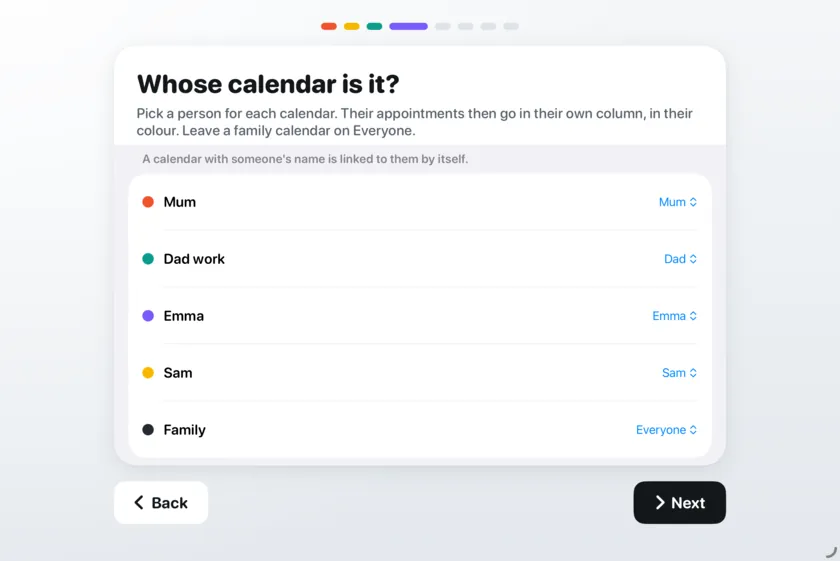
A calendar named after someone, like Emma, is linked to Emma by itself. Leave a calendar of the whole family with Everyone.
4. Kids without their own phone
Make a calendar for each child yourself on your iPhone: in the Calendar app tap Calendars, then Add Calendar. Call it by the child's name, for example Emma, and choose iCloud. Put their swimming lessons and parties in it. The board links a calendar with a child's name to that child by itself.
5. Someone uses Google Calendar or Android
Add the Google account on the device on the wall. Then all calendars of that account show on the board.
- On the device on the wall, open the Settings app.
- With iOS or iPadOS 18 or later: tap Apps, then Calendar, then Calendar Accounts, then Add Account, then Google. With iOS 15, 16 or 17: tap Calendar, then Accounts, then Add Account, then Google.
- Sign in to Google and make sure Calendars is switched on.
- Is a calendar that someone shared with you in Google missing? On the device on the wall, open calendar.google.com/calendar/syncselect, tick that calendar and tap Save.
Family members with Android share their Google calendar with that Google account. It then shows up on the board too.
Outlook or a work calendar? You add it in the same place: under Add Account, choose Outlook.com or Microsoft Exchange.
6. A calendar link from school or a club
- On the device on the wall, open the Calendar app and tap Calendars.
- Tap Add Calendar, then Add Subscription Calendar.
- Paste the link from the school or club and subscribe.
- Switch the calendar on in FamilyWeek: Parents, Calendars on the board.
7. Dinner
The easiest way: plan dinner right in FamilyWeek. Tap the yellow note on the board, then Make a Meals calendar. FamilyWeek makes that calendar in iCloud, and you type what you eat or tap a dinner you had before. Share the Meals calendar as in step 2, and your family sees dinner on their own phones and can change it there too.
Rather use your phone?
- On your iPhone, open the Calendar app, tap Calendars, then Add Calendar.
- Call it Meals, choose iCloud and tap Done.
- Share it with your family and with the device on the wall, as in step 2.
- Put dinner in it as an evening appointment, or as a whole day. The board puts it on the yellow note by itself.
A calendar called Meals, Eten, Maaltijden or Avondeten is recognised by FamilyWeek by itself.
Still not on the board?
- Give it a minute. New appointments can take a few minutes to arrive.
- Is the calendar switched on in FamilyWeek? Look under Parents, Calendars on the board.
- Is the calendar under On My iPhone? Then it stays on that phone. Put the appointments in an iCloud calendar.
- Does the device on the wall have internet? Without it, the board shows what it received last.
- Invitation accepted? A shared calendar only appears after it's accepted, on the device on the wall.